.png)

XAMPP is one of the most popular local server environments used by web developers worldwide to run PHP and MySQL-based applications on their computers. It provides an easy-to-use platform to develop, test, and deploy websites before pushing them to live servers.
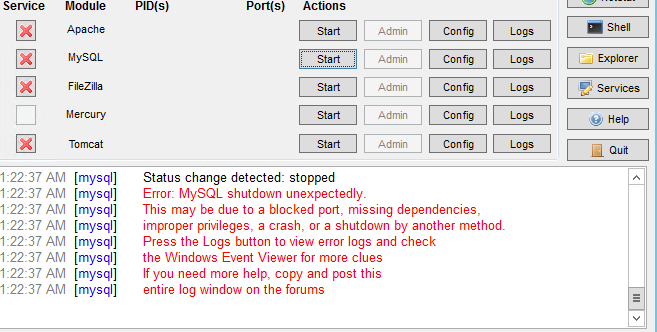
However, many developers face a common issue when starting MySQL in XAMPP:
XAMPP is one of the most popular local server environments used by web developers worldwide to run PHP and MySQL-based applications on their computers. It provides an easy-to-use platform to develop, test, and deploy websites before pushing them to live servers.
However, many developers face a common issue when starting MySQL in XAMPP:
This error, often referred to as the “MySQL shutdown unexpectedly” error, can stop your development workflow. It occurs due to port conflicts, corrupted database files, permission issues, or improper shutdowns.
In this blog, we will discuss why this error occurs and provide a step-by-step guide to fix it efficiently. By following these methods, even beginners can get their XAMPP MySQL running smoothly.
Why Does the MySQL Shutdown Unexpectedly Error Occur?
Understanding the root causes is the first step to fixing the problem. Common reasons include:
- Port Conflicts:
MySQL by default uses port 3306. If another application (like Skype, WAMP, or another database server) is already using this port, MySQL fails to start. - Corrupted Database Files:
Improper shutdowns, sudden PC shutdown, or system crashes can corrupt InnoDB log files or databases. - Incorrect my.ini Configuration:
If the configuration file (my.ini) has wrong paths or port numbers, MySQL cannot start. - Permissions Issue:
Running XAMPP without administrative privileges can block MySQL from accessing required files. - Antivirus or Firewall Blockages:
Security software may prevent MySQL from accessing network ports or local data folders. - Broken or Incomplete Installation:
Sometimes, a corrupted XAMPP installation can lead to startup errors.
Step-by-Step Solutions to Fix XAMPP MySQL Errors
Step 1: Check MySQL Port Conflict
- Open XAMPP Control Panel → Click Config → my.ini
- Search for port=3306 in [mysqld] section
- If port 3306 is in use, change it to another free port like 3307
- Save the file and restart XAMPP → Start MySQL
If another process appears, either stop it or change MySQL port in my.ini.
Step 2: Delete Corrupted InnoDB Log Files
- Navigate to the folder: xampp/mysql/data/
- Delete the following files:
- Backup your databases if necessary before deleting
- Restart MySQL from XAMPP Control Panel
Why this works: These files store transactional logs and sometimes get corrupted. Deleting them forces MySQL to recreate fresh logs.
Step 3: Run XAMPP as Administrator
- Right-click XAMPP Control Panel → Run as Administrator
- This ensures MySQL has proper permission to access system resources
Tip: Always run XAMPP as admin to prevent permission-related errors.
Step 4: Verify my.ini Configuration
- Open xampp/mysql/bin/my.ini
- Ensure the [mysqld] section is correctly configured:
- Save changes and restart MySQL
Incorrect data directories or port settings are common causes of startup failure.
Step 5: Temporarily Disable Antivirus/Firewall
- Security software may block MySQL access
- Temporarily disable antivirus or firewall
- Start MySQL in XAMPP and check if it works
Tip: Add MySQL as an exception in your antivirus for long-term prevention.
Step 6: Backup and Reinstall XAMPP (Last Resort)
If none of the above solutions work:
- Backup htdocs (your projects) and mysql/data folders (databases)
- Uninstall XAMPP completely
- Download the latest XAMPP version from Apache Friends
- Reinstall and restore your projects and databases
Tip: Always use a stable XAMPP version compatible with your OS.
Extra Tips to Prevent MySQL Errors
- Always stop MySQL properly before shutting down XAMPP
- Avoid multiple servers using the same port
- Take regular backups of your databases
- Monitor your PC’s security settings to ensure MySQL access
- Use latest PHP and MySQL versions to avoid compatibility issues
Conclusion
The “MySQL shutdown unexpectedly” error in XAMPP is one of the most common issues faced by web developers on Windows. It may seem intimidating at first, but most errors are caused by port conflicts, corrupted database files, or configuration issues.
By following the step-by-step solutions mentioned in this guide—checking ports, deleting log files, running XAMPP as admin, verifying my.ini, handling antivirus/firewall issues, and reinstalling XAMPP if needed—you can get your local development environment back on track.
Regular backups, proper shutdowns, and monitoring ports can prevent future occurrences, ensuring smooth workflow for all your PHP and MySQL projects.